On the Dashboard page, click Create re-string.
Check the tournament name and location at the top of the order form. If the tournament is incorrect, please select the right one on the Events page first.
Find a customer by entering their name in the search field. You can also create a new customer account at this step. See more about adding new customers here.
If the customer has an order history with Stringr, the Reload last restring button will appear. Otherwise, add the first racquet by clicking Add racquet. You will be able to increase the quantity of identical racquet restrings in the same order.
Enter the customer's stringing preferences.
Select the model of the racquet. If you cannot find your racquet in the list, you can add it by clicking Add option at the bottom of the list.
The Set the same parameters for all strings toggle is on by default. This means that the string selection, tension, and pre-stretch will be the same for both mains and crosses. Turn off the toggle if you would like to specify different parameters mains and crosses.
Select the strings for this racquet to be restrung with. If the customer is brining their own strings, check the box next to I will bring my own strings - string cost will be excluded from the order total. If the customer's own strings are not in the list, you can add them by clicking Add option at the bottom of the list.
Enter the desired tension and pre-stretch percentage. You can choose between kg and lb for the tension field.
Select the desired number of knots.
Select the type of stencil requested, if any. If you select a stencil, you will need to choose the colour for it as well.
Toggle the Replace overgrip switch if the customer wants the overgrip replaced during the restring.
Add any additional comments, if required.
Use the + and - buttons next to the quantity field to set the number of racquets to be restrung using this configuration. You can adjust this later in the main order form.
Click Add racquet
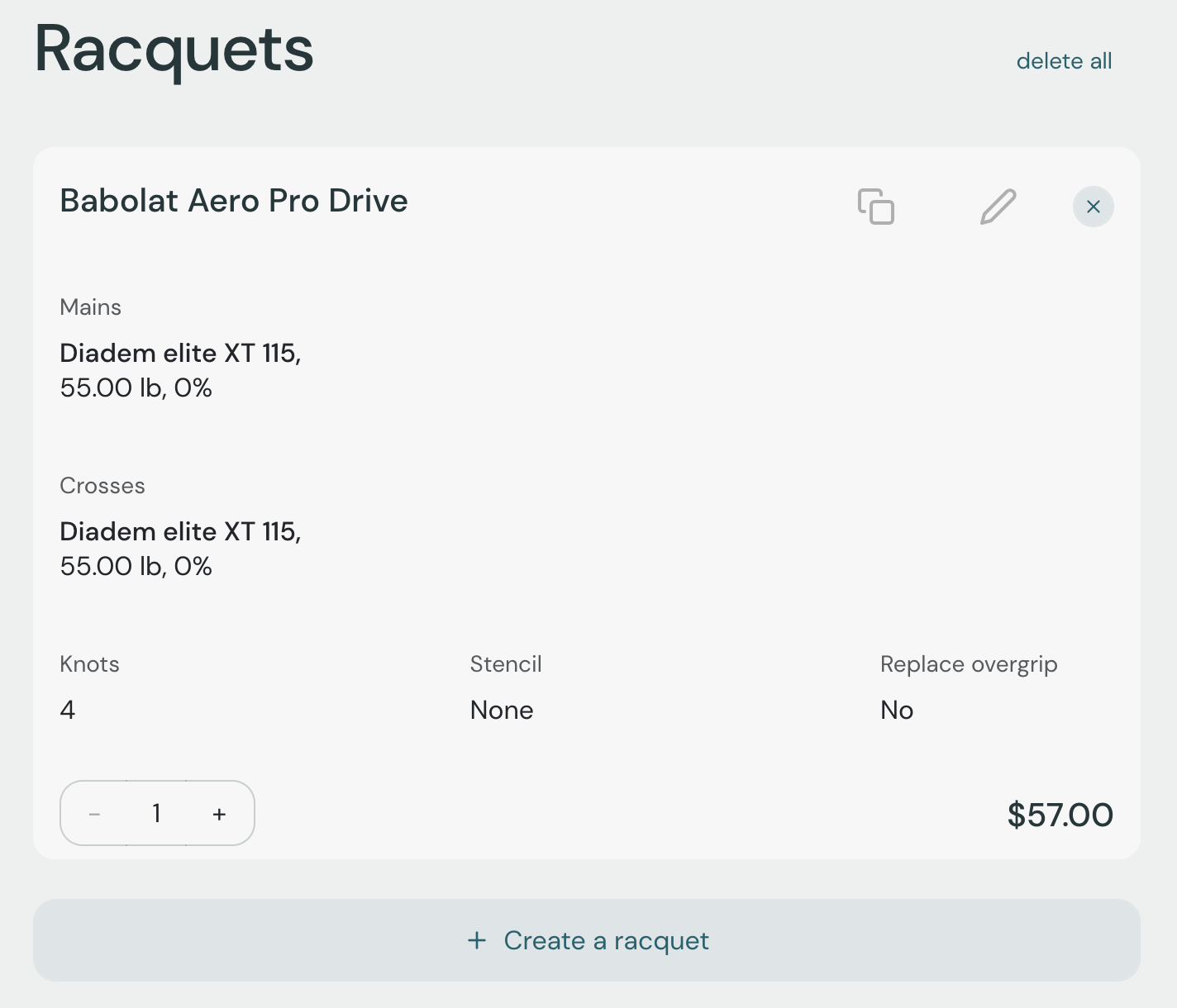
Once you add your first racquet, your racquet list will look similar to the screenshot below. You can:
Increase or decrease the number of racquets with identical stringing preferences
Duplicate the racquet and adjust the preferences for a slightly different configuration
Edit the racquet in case something doesn't look right
Create another racquet from scratch following the steps above
Remove one racquet or remove all and start over
You can add a promo code by entering it in the promo code field and clicking Apply.
Select the desired pickup date and time. Check the box next to One hour before match, if needed. This information will be printed on the racquet tag.
Select the desired restring time.
Click Continue. Stringr will validate the order and display the order summary on the checkout page.
Select the payment method here:
Pay at the store. You will be able to record the payment once the order is submitted.
Pay with tournament prize money.
Click Confirm to finalize the order.
Stringr will take you to the order page, where you can confirm payment, assign a stringer, and print the tags. If the customer has an email on file, they will get an order confirmation email.
